How to play Worms Armageddon online
Step-by-step guide with real screenshots. Red marks show where to click.
1. Join a host
Do this when a friend has already set up the game and you are joining. Before starting, ask the host for two things: the room name and their virtual IP (something like 10.0.3.3).
It works best in an up-to-date Google Chrome or Microsoft Edge on a desktop or laptop (not on a phone). Firefox works, but Esc leaves fullscreen there. Safari is not recommended. Close heavy tabs (videos, games) so it runs smoothly.
Open the game link you were given. No account or password is needed. The game starts offline so you can try it.
In the left sidebar click Play online (1). A panel opens: if the host's room is listed, click Join (3). If not, type its exact name in the box (2) and click Create or join. The game restarts connected to that room. If the host sent you a link with ?room=, just open it and you are in.
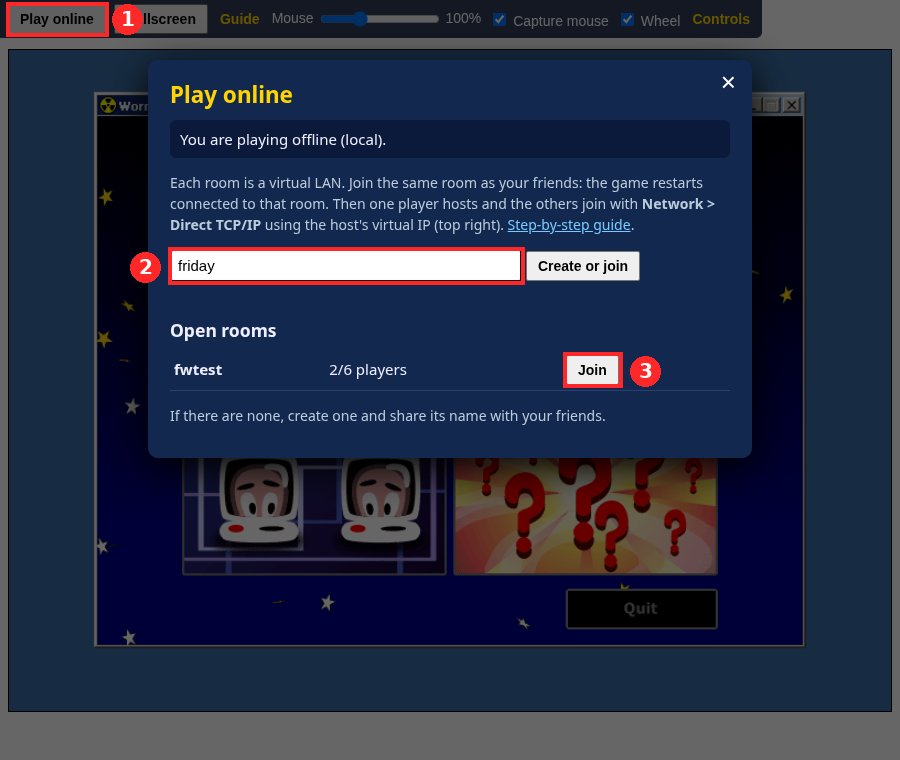
The first time it downloads the game, which can take from 30 seconds to a couple of minutes depending on your connection. Later visits are faster. Once it starts, the sidebar shows the room and your virtual IP: that means you are connected to the room.
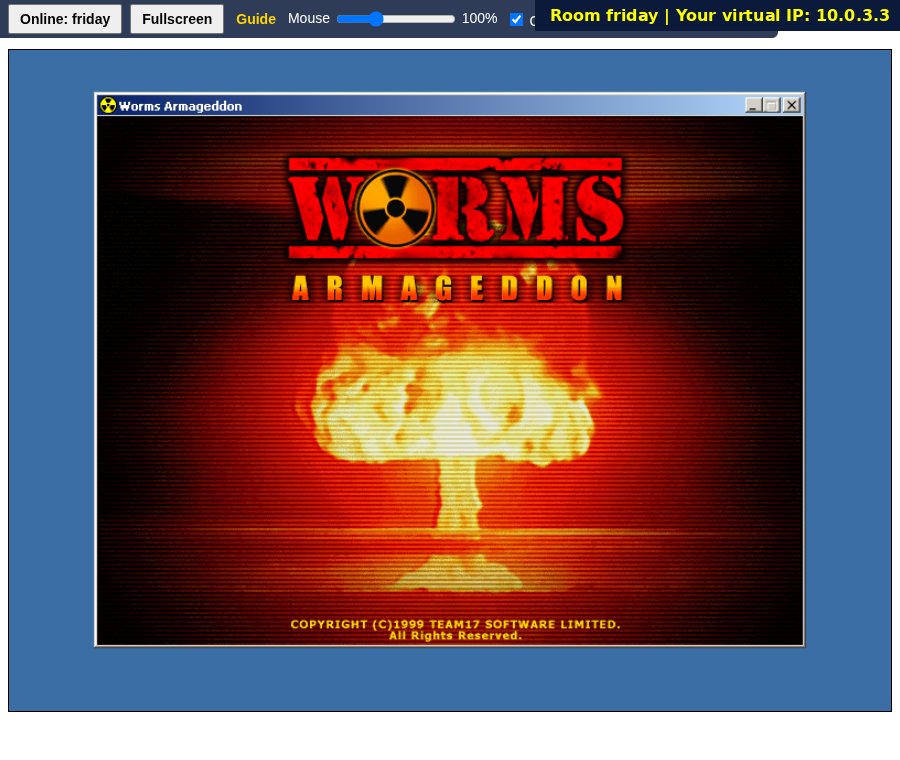
Click once inside the game window. That skips the intro and also enables sound (browsers do not play audio until you click).
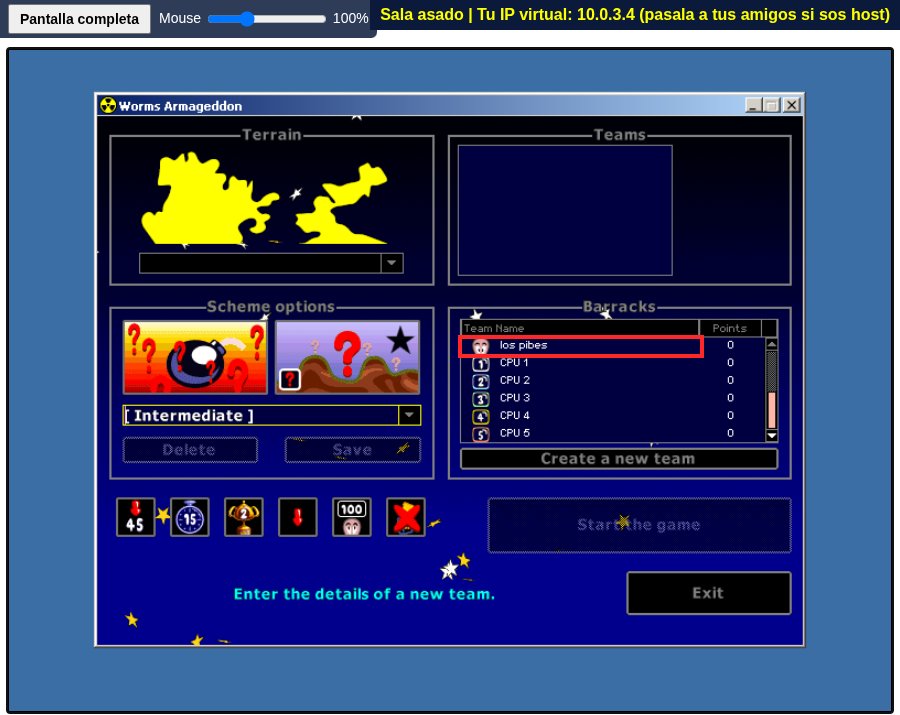
So that there are no duplicate teams, everyone needs their own team with a different name. You only do this once (it is saved in your browser). See Create your team and come back here.
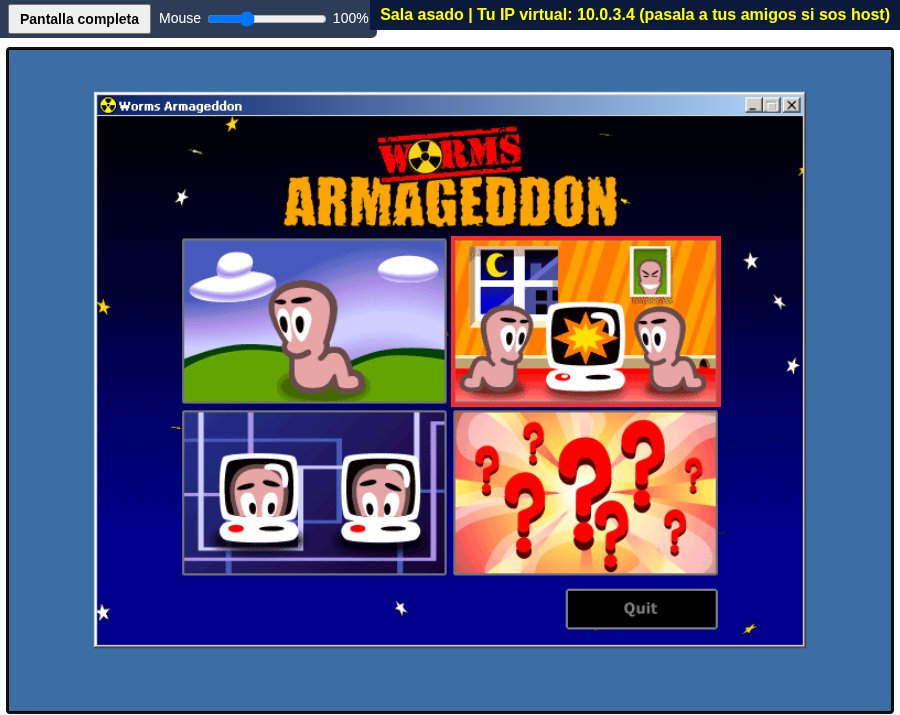
In the main menu click the bottom-left box (the two computers).
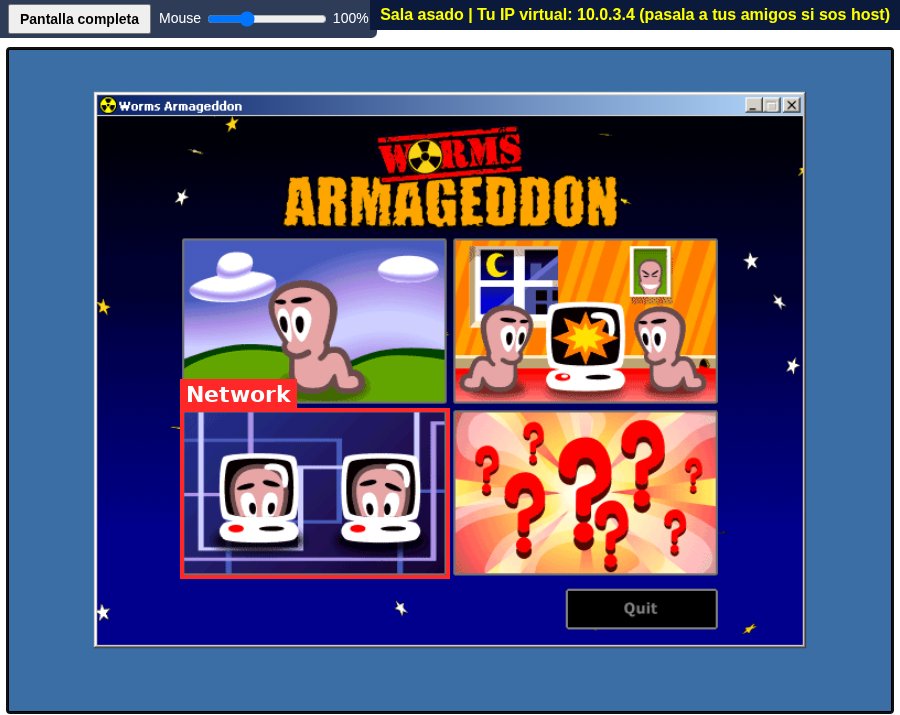
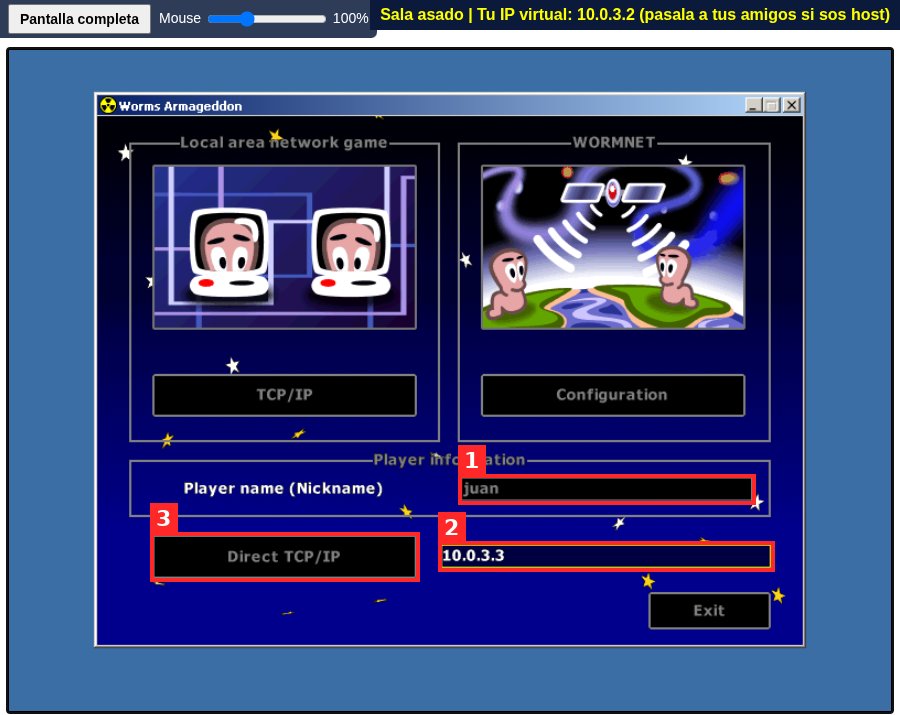
- In Player name delete the text (for example
username) and type your nickname. It must be different from everyone else's. Press Enter. - In the long box next to Direct TCP/IP type the host's virtual IP exactly as given (e.g.
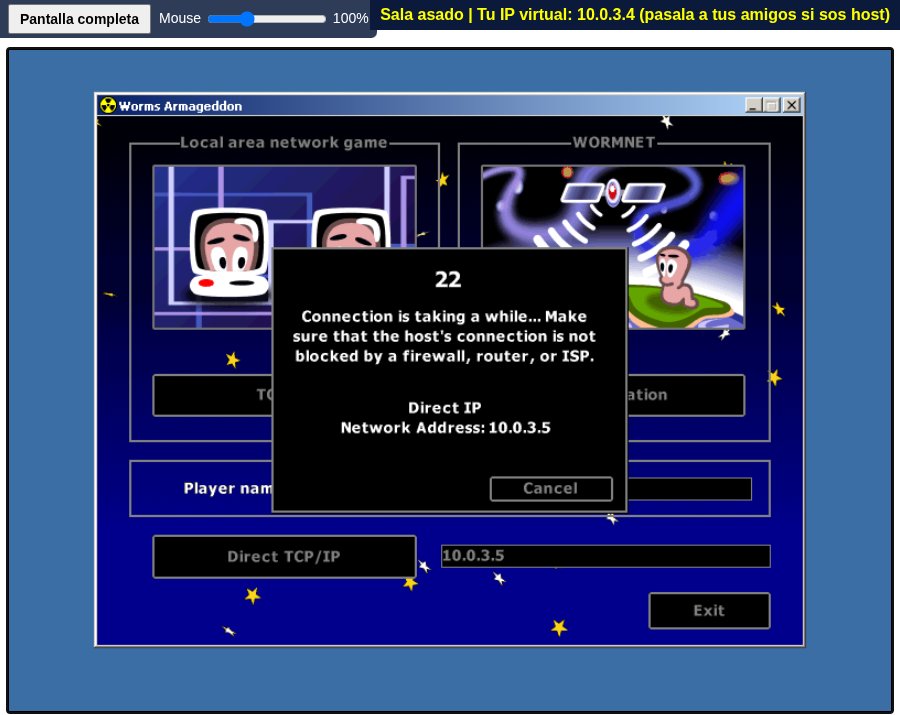
10.0.3.3). The host's, not yours. - Click the Direct TCP/IP button.
A "Connection is taking a while" message may show for a few seconds. It normally connects on its own. If it takes more than half a minute, see Troubleshooting.
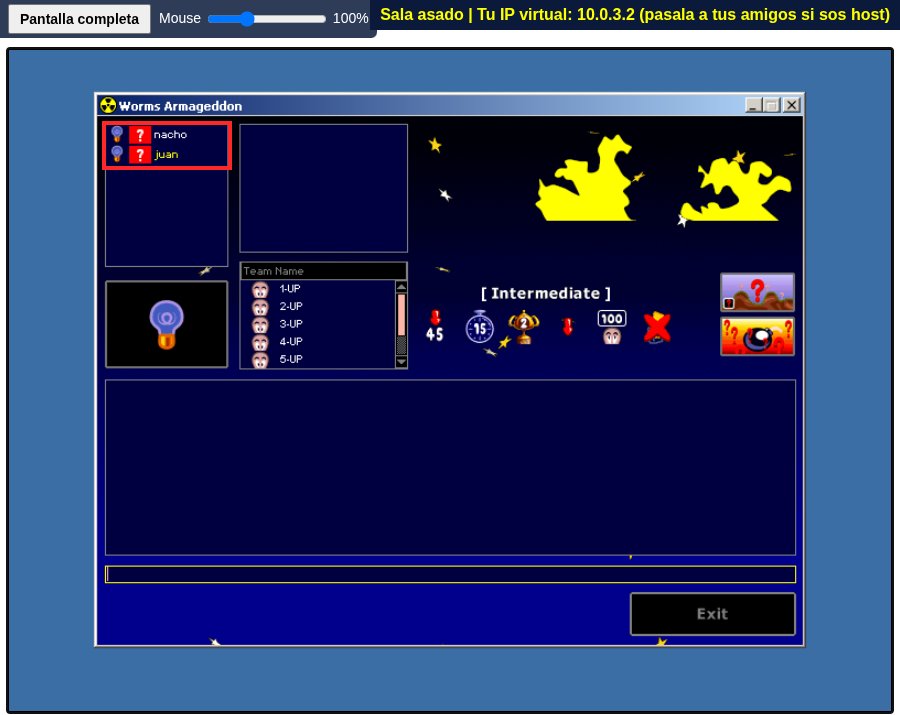
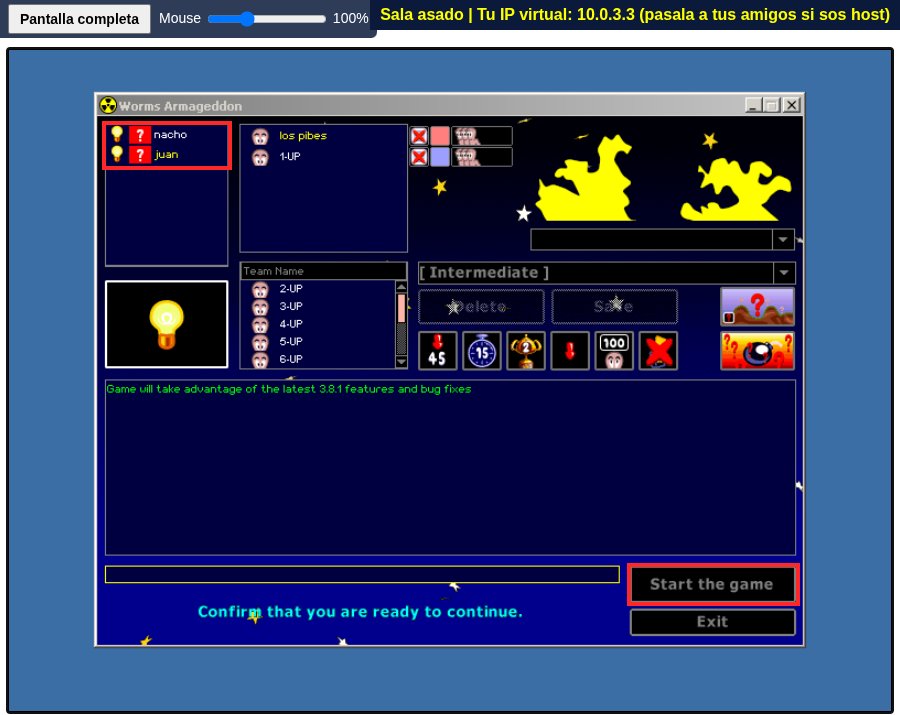
The connected players (the host and you) are listed at the top left.
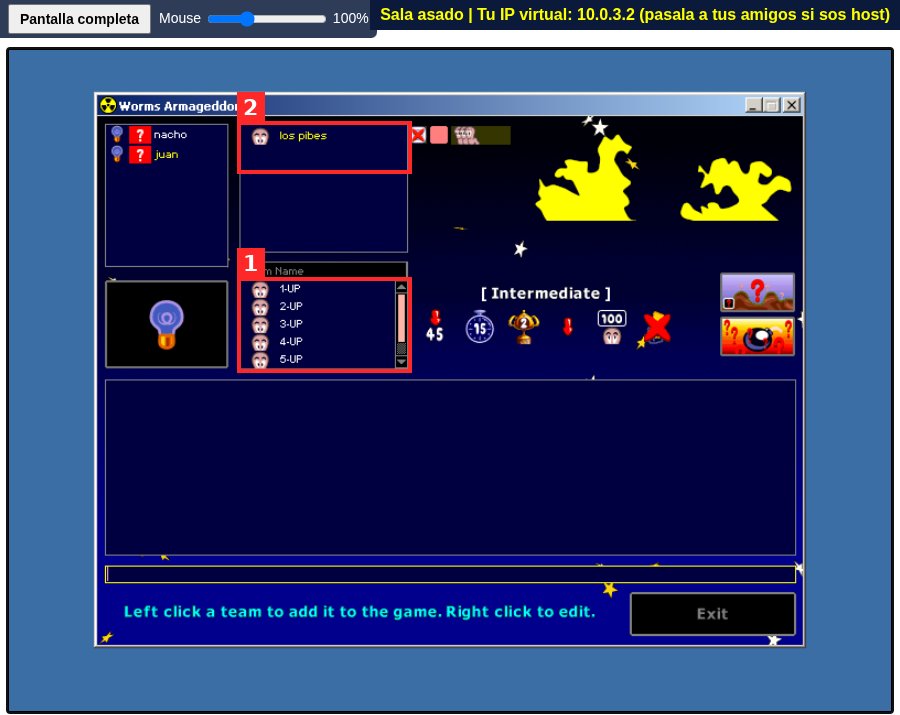
In the Team Name list (1) scroll to your team and click it once. It appears above, in the match's team list (2). If you made a mistake, click it up there to remove it.
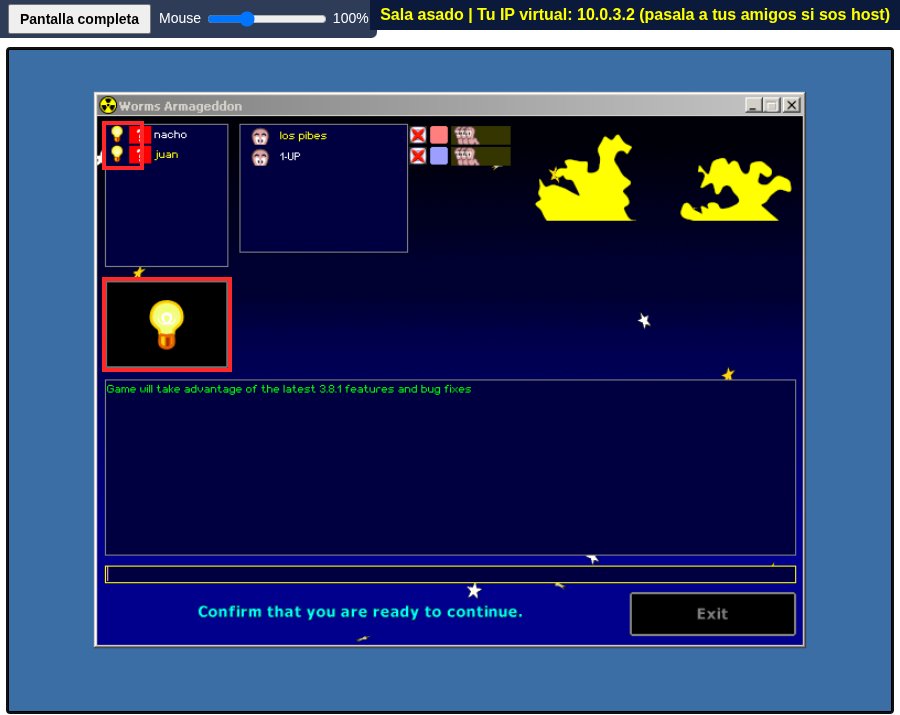
Click the big light bulb on the left. It turns yellow, and so does the one next to your name, so the host knows you are ready. Now wait for the host to start.
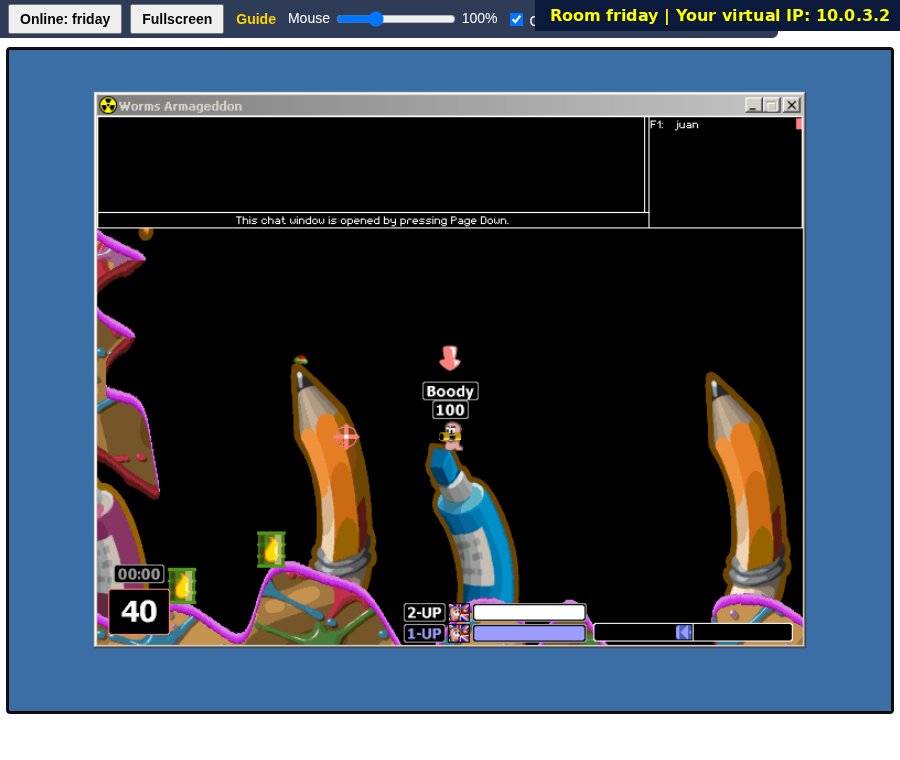
When the host clicks Start the game, the match starts for everyone. Tip: the Fullscreen button in the sidebar enlarges the game (a small Windowed mode button in the black border takes you back). If the cursor moves too much or too little, adjust the Mouse slider next to it. See Controls & camera.
Create your own team
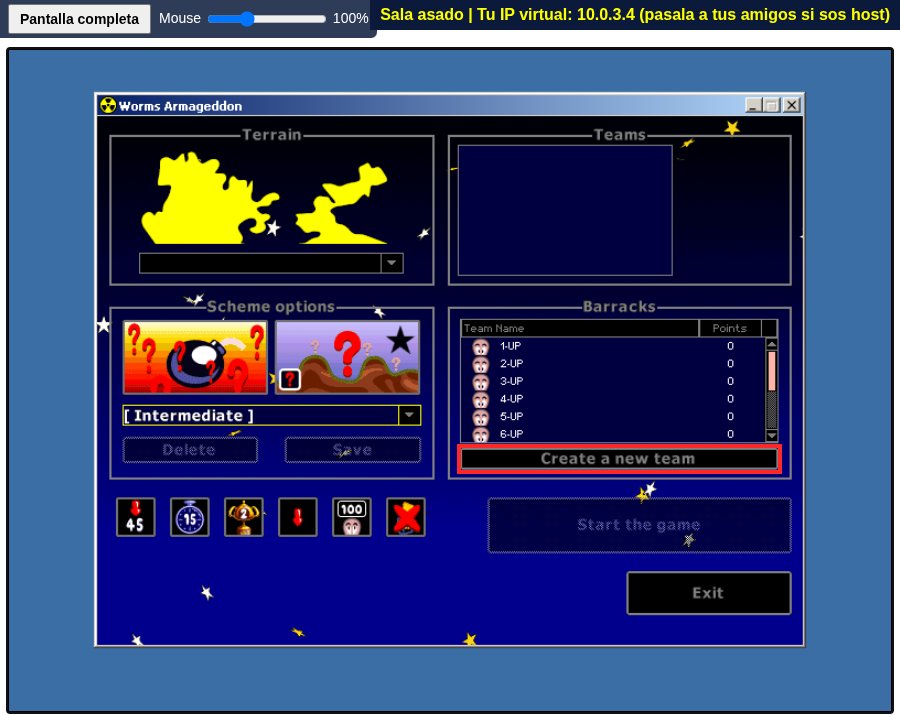
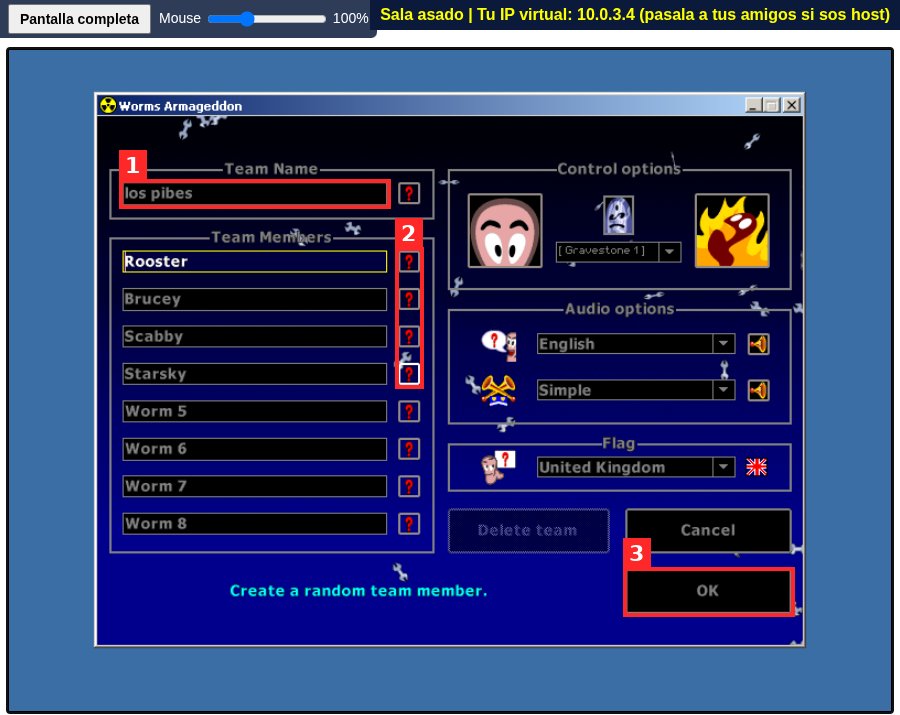
- In Team Name delete "Name" and type a name nobody else uses.
- Type your worms' names, or click the ? buttons to generate them.
- Optionally change the flag, voices and gravestone on the right. Then click OK.
2. Host a game
Open the game, click Play online, type a short room name (e.g. friday) and click Create or join. The game restarts in that room: wait for it to load and click inside the game (as in steps 4 and 5 above). The Play online panel has a Copy link button to invite friends.
Open Network, enter your nickname, leave the box next to Direct TCP/IP empty and click Direct TCP/IP.
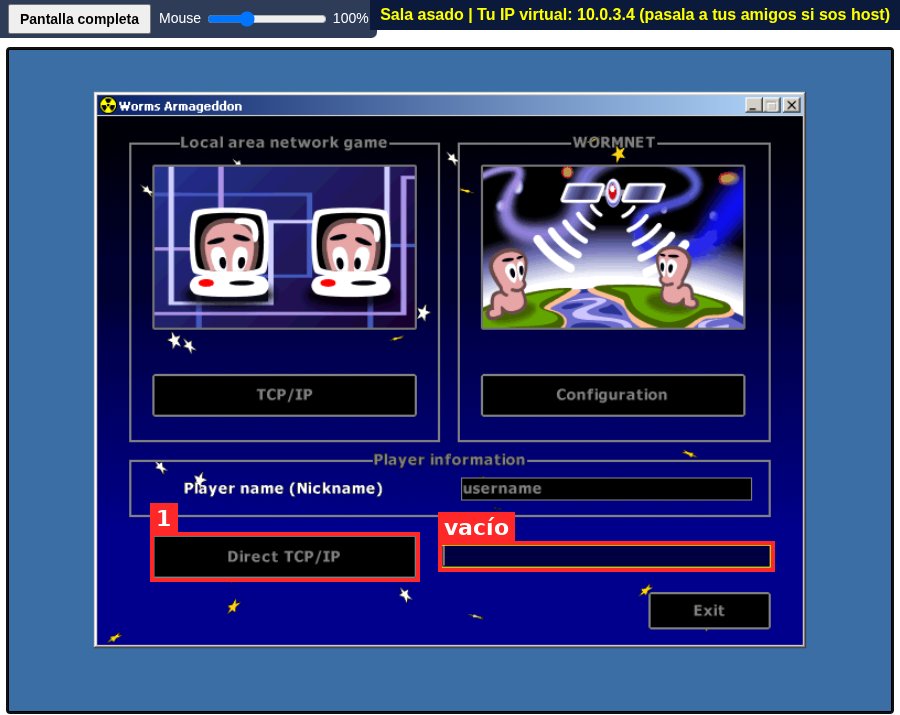
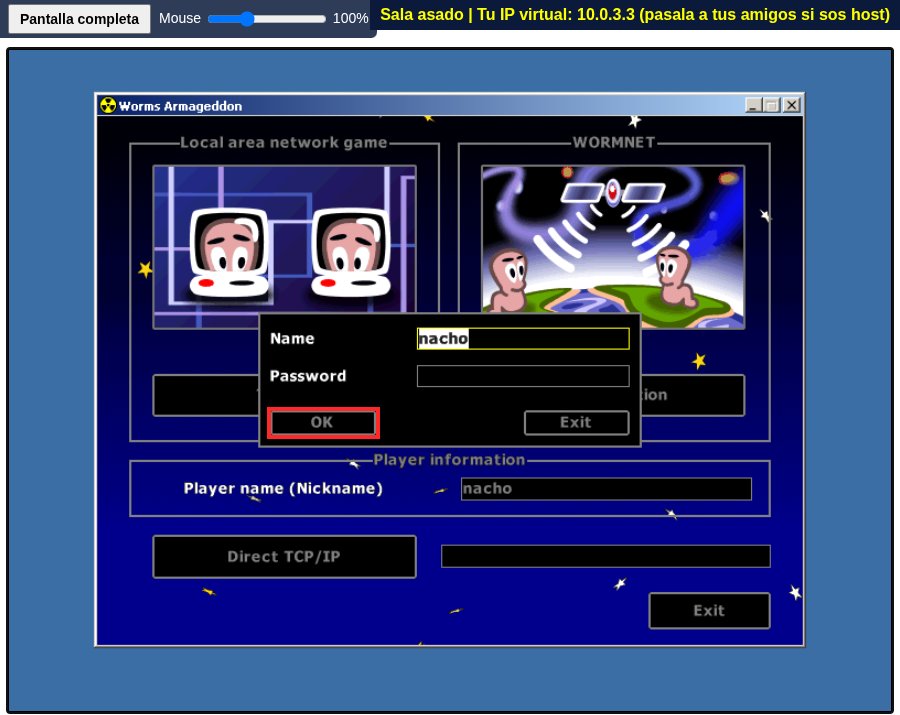
You are now hosting. Send your friends the room link (or its name) and the virtual IP shown in the sidebar (e.g. 10.0.3.3), plus a link to this guide.
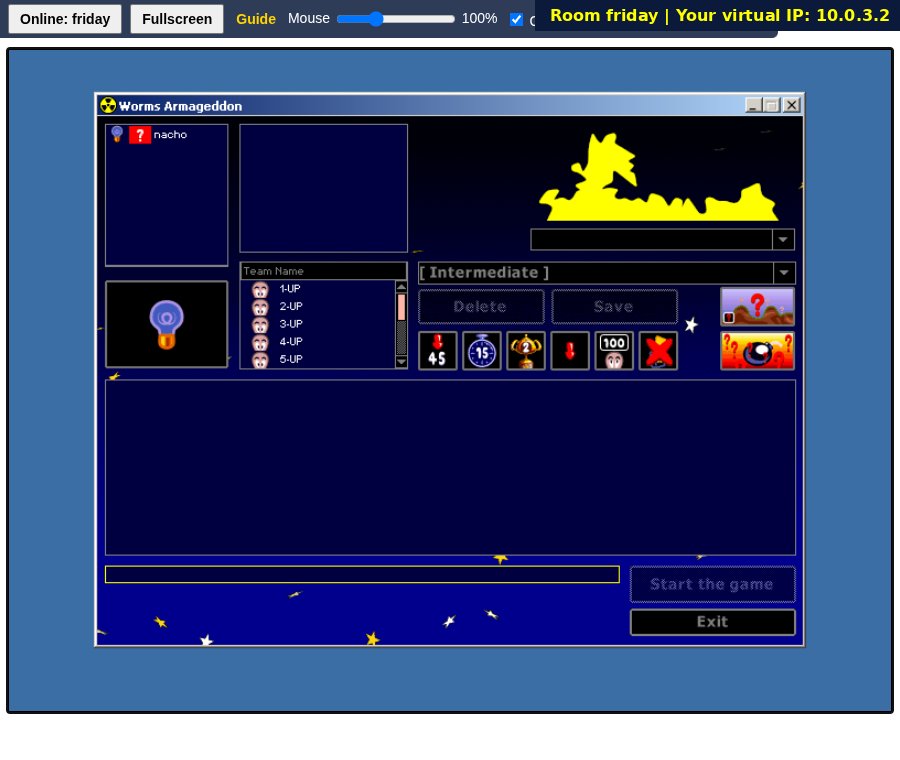
Click your team, turn on your light bulb and choose terrain and rules if you like. When every player's light bulb is yellow, click Start the game.
Controls & camera
The Controls link in the sidebar shows the same summary. Home, Ctrl+Home and Scroll Lock are the standard Worms Armageddon camera keys and are passed through to the game.
- Move the mouse to scroll the map. With Capture mouse enabled (sidebar), click the game once per match and the pointer is locked to the game, so it never hits the edge of the screen. Press Esc to release it.
- Home: center the camera on the current worm. Ctrl+Home: keep the camera locked on your worm (press Home again to unlock).
- Scroll Lock: stop the camera from following things automatically.
- Arrow keys: walk and aim. Enter: jump. Backspace: back-flip. Space: fire (hold for power).
- Right click: weapon menu. F1-F12: weapon groups. Tab: next worm (if the scheme allows it). Page Up/Page Down: chat window.
- Mouse wheel and two-finger trackpad scrolling are converted into single, rate-limited wheel steps so the camera can not fly away. Untick Wheel in the sidebar to ignore the wheel completely.
- Mouse slider: linear sensitivity (100% = one screen pixel per pixel of movement, no acceleration). It is saved in your browser.
Troubleshooting
My room and virtual IP do not show up in the sidebar
You are playing offline. Click "Play online" and join the room. If it still does not show up, reload the page (F5).Stuck on "Connection is taking a while" or it does not connect
- Check that you are in the same room as the host (the sidebar shows the room name).
- If the panel says "Could not reach the online server", the server may be down or full: try again later.
- Check that you typed the host's IP, not yours, without spaces.
- The host must already be on their game lobby screen (step 4 of Host a game) before you click Direct TCP/IP.
- If the host reloaded the page, their virtual IP may have changed: ask for the new one.
- Click Cancel and try again. If it keeps failing, reload the page and repeat.